Log Sources allow you to configure different servers, applications, network devices, databases, or any other sources to collect or fetch their logs. The collected or fetched log data is then centralized and analyzed within Logpoint in real-time to detect potential security threats. To learn more, go to Log Sources.
You can configure Log Sources using collectors, fetchers or any log source integrations installed on Logpoint.
To create a Log Source, you must select the pool and machine on which you want to create one.
Go to CONFIGURE >> LOG SOURCES from the navigation bar.
Click Create Log Source.
Select the source, you want to base log source creation on.
Select Pool and Machine.
Click Next.
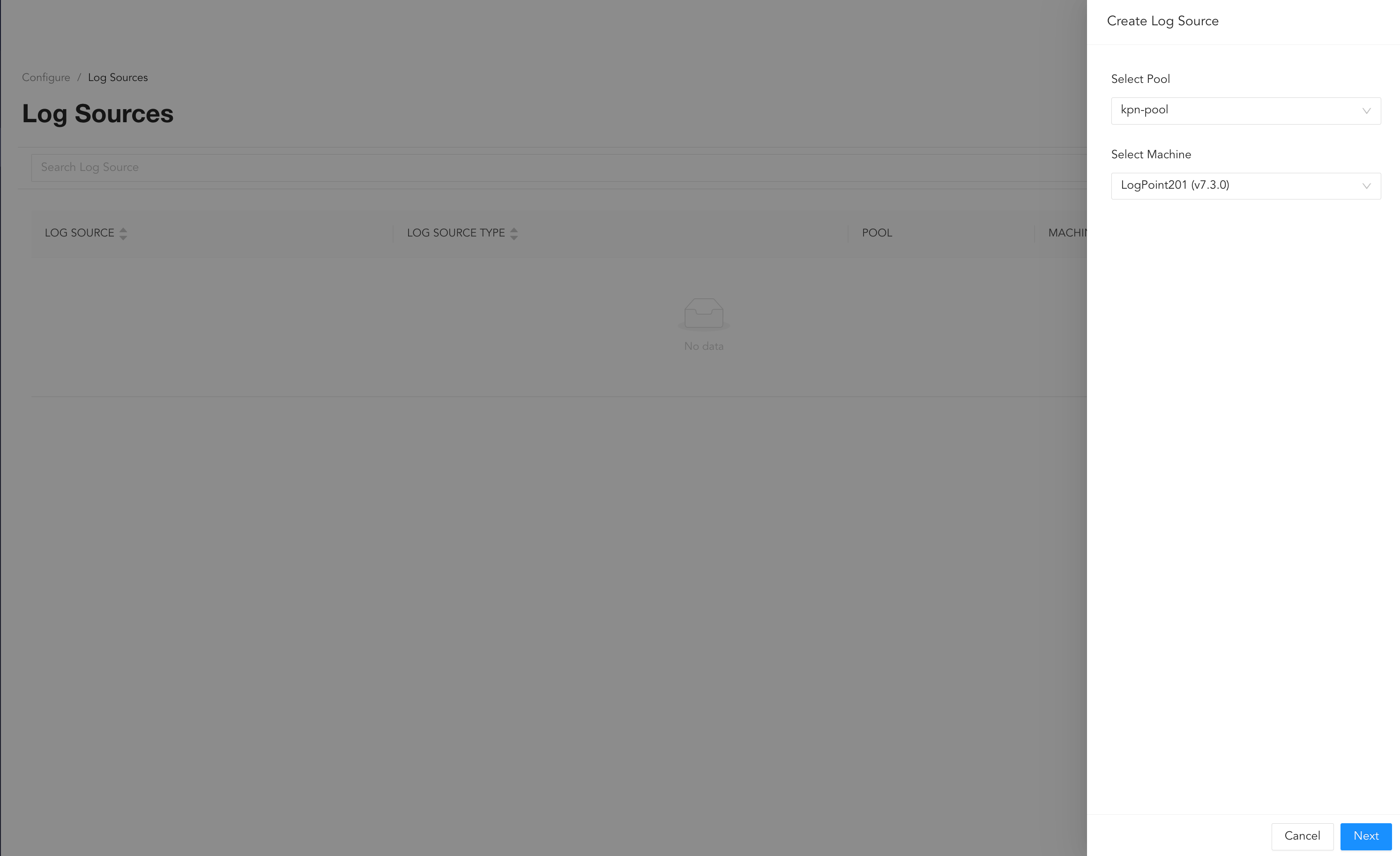
Select Pool and Machine
You can create a Log Source using any of the following integrations, collectors or fetchers:
Go to CONFIGURE >> LOG SOURCES from the navigation bar.
Click the log source and make the necessary changes.
Click Update Log Source.
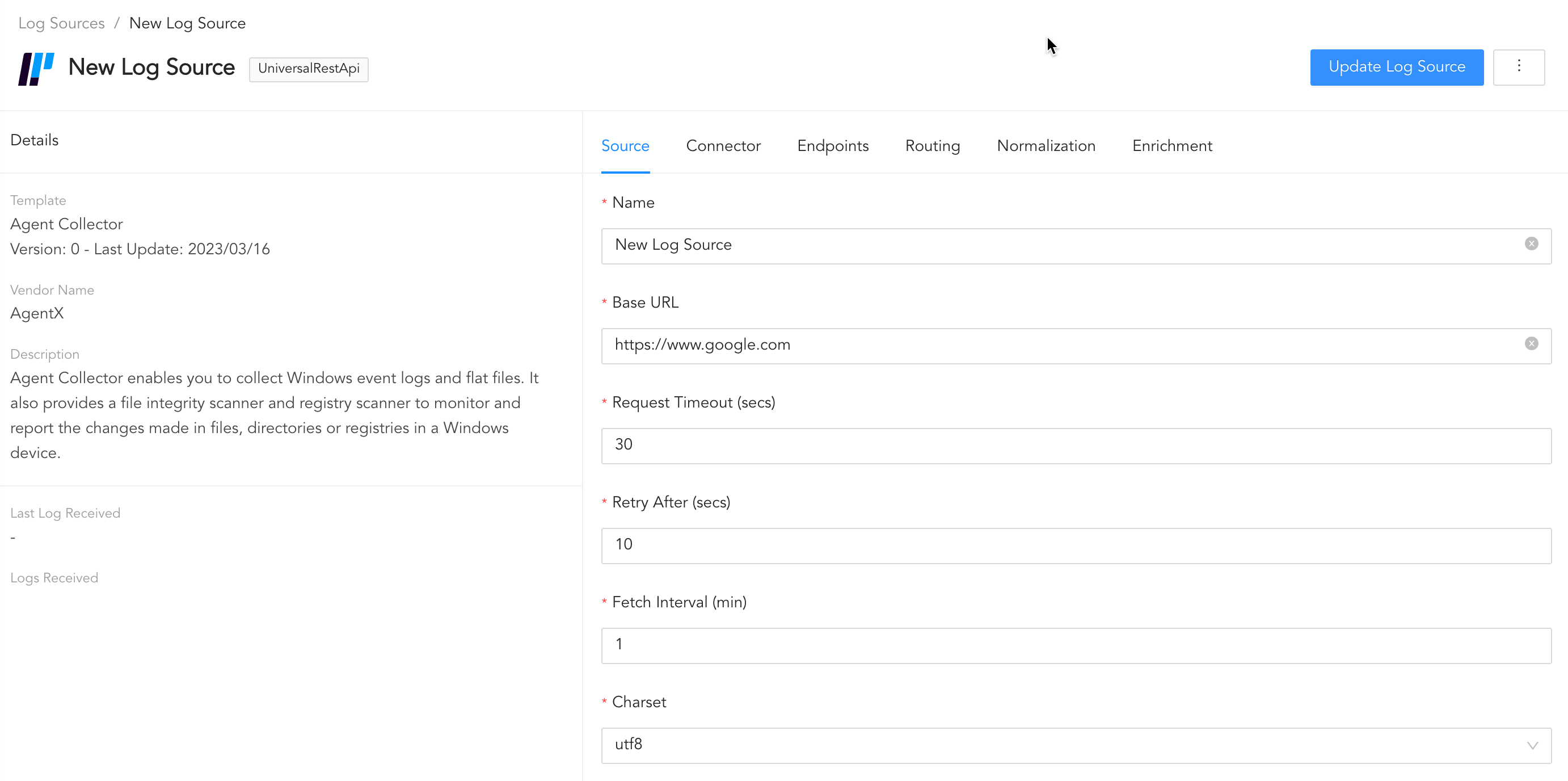
Editing Log Source
Go to CONFIGURE >> LOG SOURCES from the navigation bar.
Click the ( ) icon of the log source and click Delete Log Source.
Click Delete to confirm.
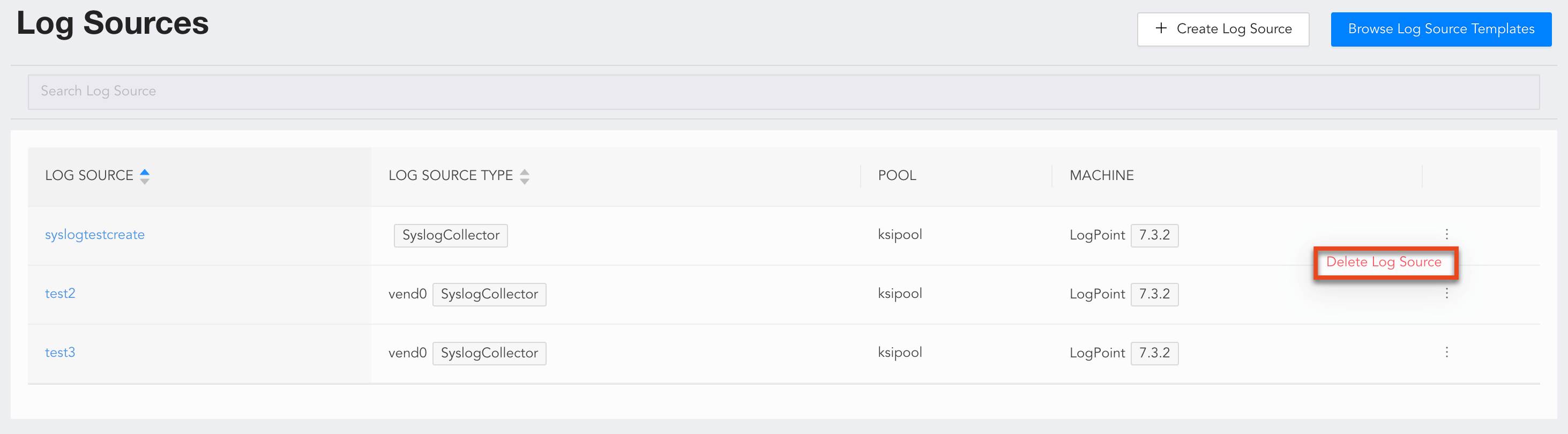
Deleting Log Source
Alternatively,
Go to CONFIGURE >> LOG SOURCES from the navigation bar.
Click on the Log source.
Click the () icon and click Delete Log Source.
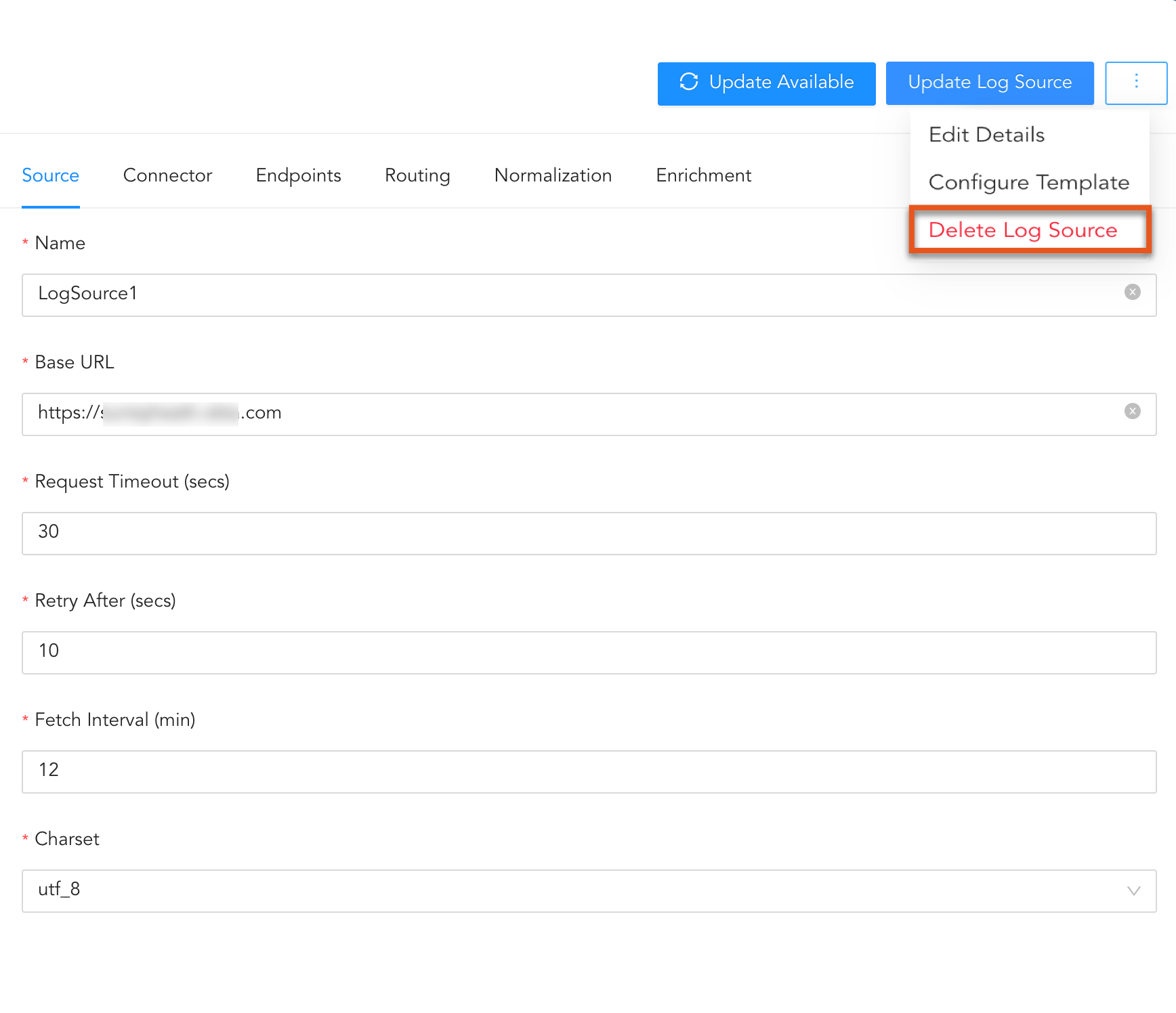
Deleting Log Source
The Director Console includes pre-configured Vendor Templates derived from connected Logpoints. You can use these templates to create new ones, even after disconnecting your Logpoints. They are not deleted. Only the latest version of a template is saved, replacing older versions. You can create log sources using templates that come with predefined settings and configurations to fetch logs from different sources using Universal REST API Fetcher or Syslog Collector.
DuoSecurityFetcher
Trellix
Sophos
Okta
CiscoAMP
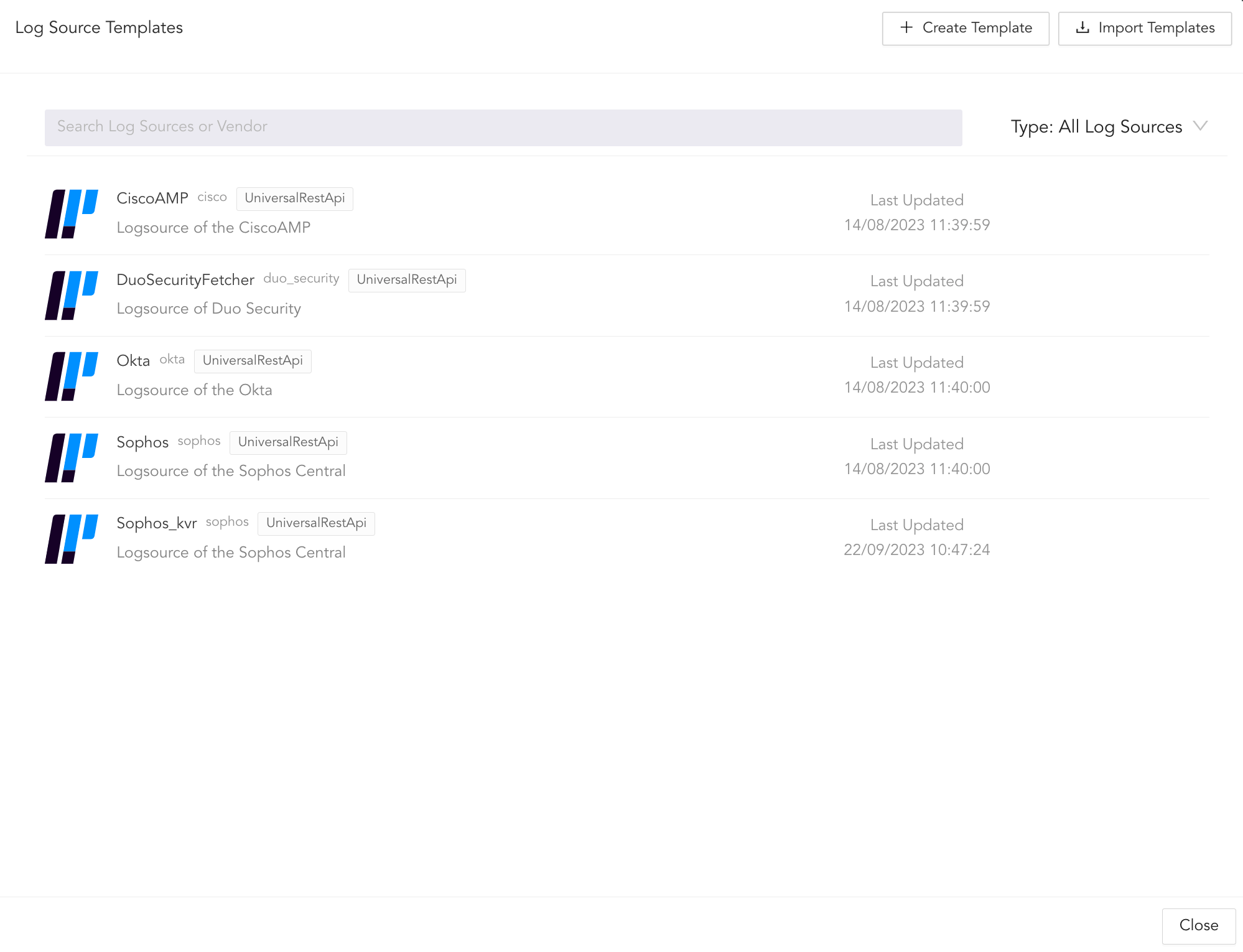
Vendor Templates
For DuoSecurityFetcher and Trellix, go to their guides.
To configure Sophos, Okta, and CiscoAMP:
Go to CONFIGURE >> LOG SOURCES from the navigation bar and click Browse Log Source Templates.
Click the log source template. All the fields are pre-configured; change the configuration only if needed.
Click Create Log Source.
Go to Syslog Collector-based Templates for the complete list.
For Syslog Collector based templates, enter the device address to create a log source. All other settings are optional. Go to syslog-collector to learn more.
To create:
Go to CONFIGURE >> LOG SOURCES from the navigation bar and click Browse Log Source Templates.
Click the log source template for an integration.
Enter the Device Addresses.
Click Create Log Source to save the configuration.
You can create new templates from previously created log sources and later use them to configure the same or different sources.
To create a new template:
Go to CONFIGURE >> LOG SOURCES from the navigation bar.
Click the previously created log source.
Click the more ( ) icon and click Configure Template.
Configure the template using relevant values.
Click Save as Template.
To find the created template, go to CONFIGURE >> LOG SOURCES and click Browse Log Source Templates.
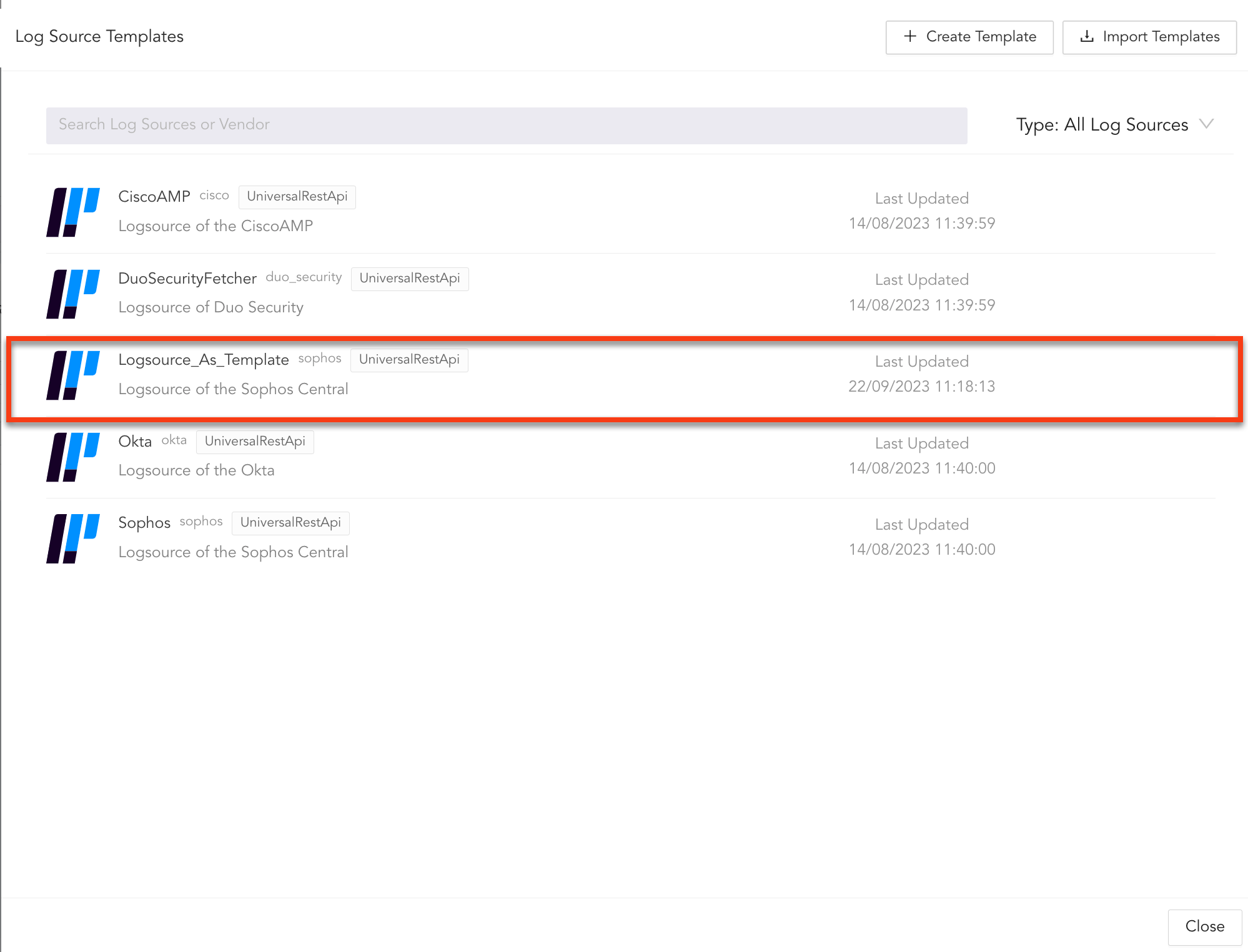
Accessing Templates
To save and use the created template as a log source, click the template and click Save Changes. The template is now saved as a log source. However, Logpoint must have the normalizers and repos used in the template. If the repos are not there, you must either create repos with the same names or select different ones. For normalizers, you can either install the normalizers or deselect them.
Note
If Logpoint does not have the signature-based normalization package used in the imported template, Log source automatically installs it.
You can modify the configurations of the previously created custom templates as per your need. To update template configuration:
Go to CONFIGURE >> LOG SOURCES from the navigation bar.
Click Browse Log Source Templates.
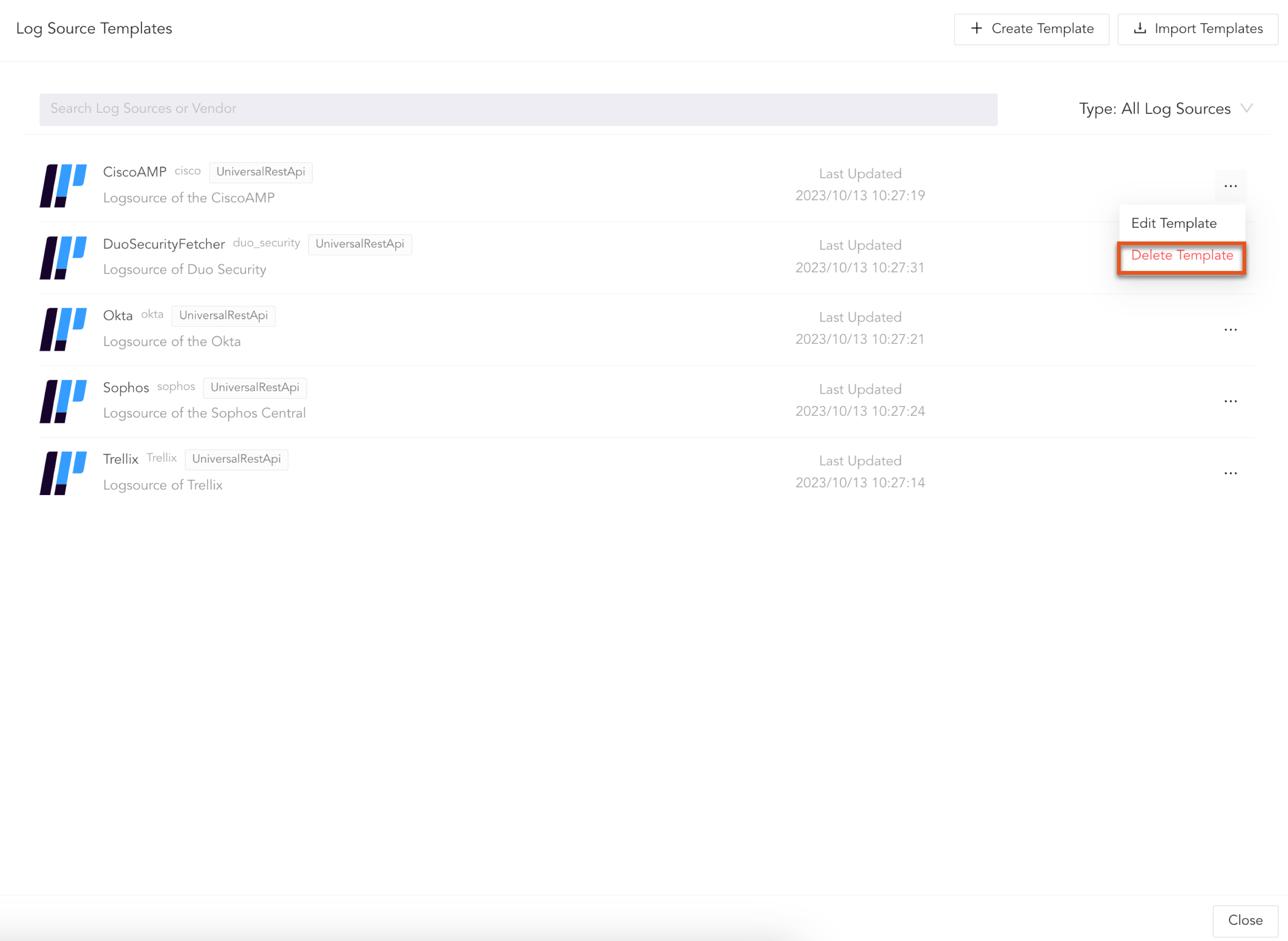
Click the ( ) icon on the template and click Edit Template.
Select Pool and Machine.
Click Next.
Click the () icon and click Configure Template.
Make the necessary changes and click Update Template.
5.1. To save the changes as a new template, enter a new name for the template and click Clone and Save as New Template.
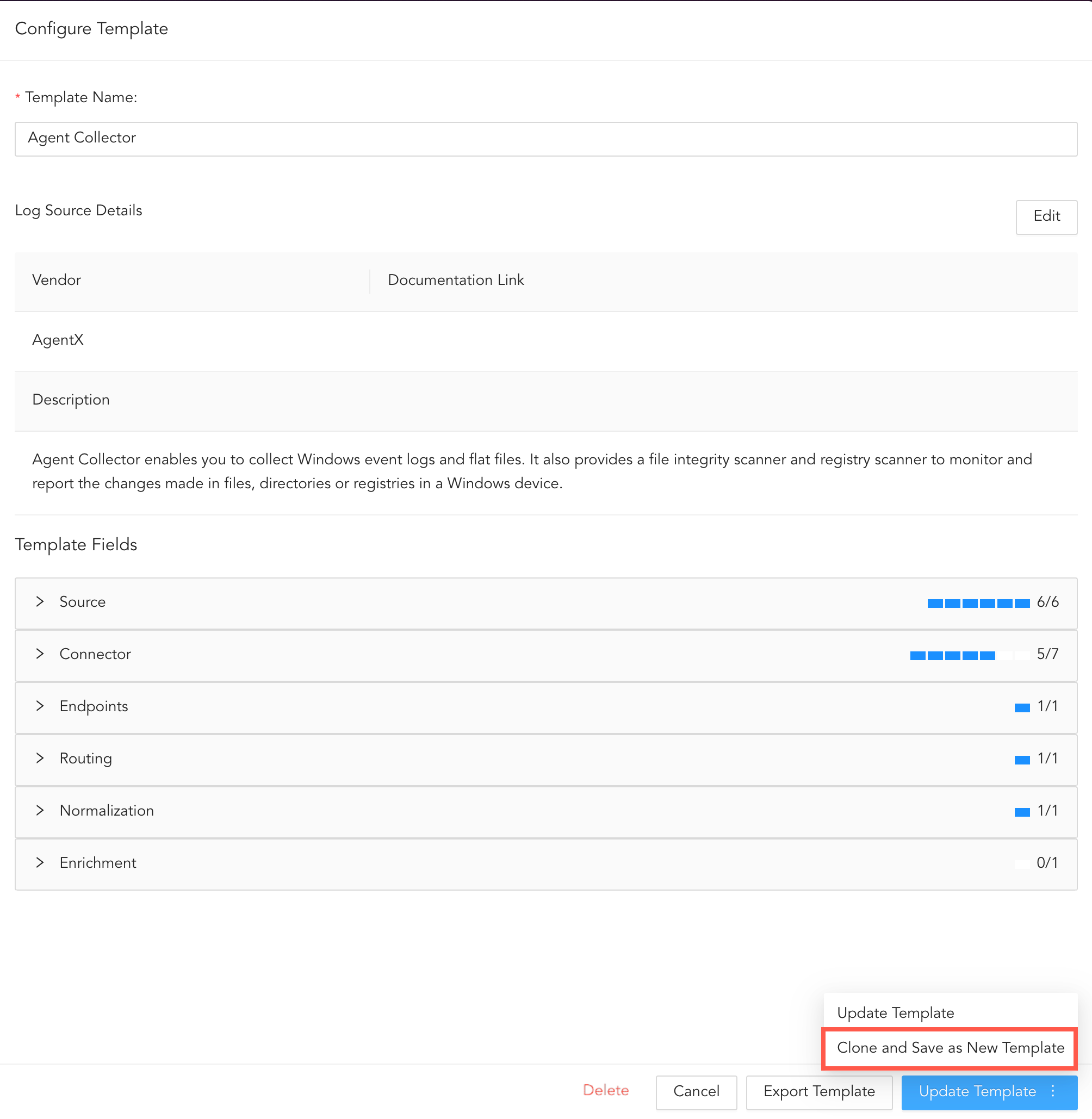
Cloning Templates
5.2. To save the changes in the same template, click Update Template.
The Log Source Template configurations are now updated. You can also update the log sources configurations that are created using this template. Select the log sources to update and click Update Log Sources.
For Universal REST API, only the following entities are updated when you click Update Log Sources:
Fetch Interval (min)
Request Timeout (secs)
Retry After (secs)
Charset
Custom Headers
Enforce HTTPS Certificate Verification
Normalizer
Logo
Description
Vendor Name
For Syslog Collector, only the following entities are updated:
Parser
Confidentiality
Integrity
Availability
Normalizer
Logo
Description
Vendor Name
Normalization
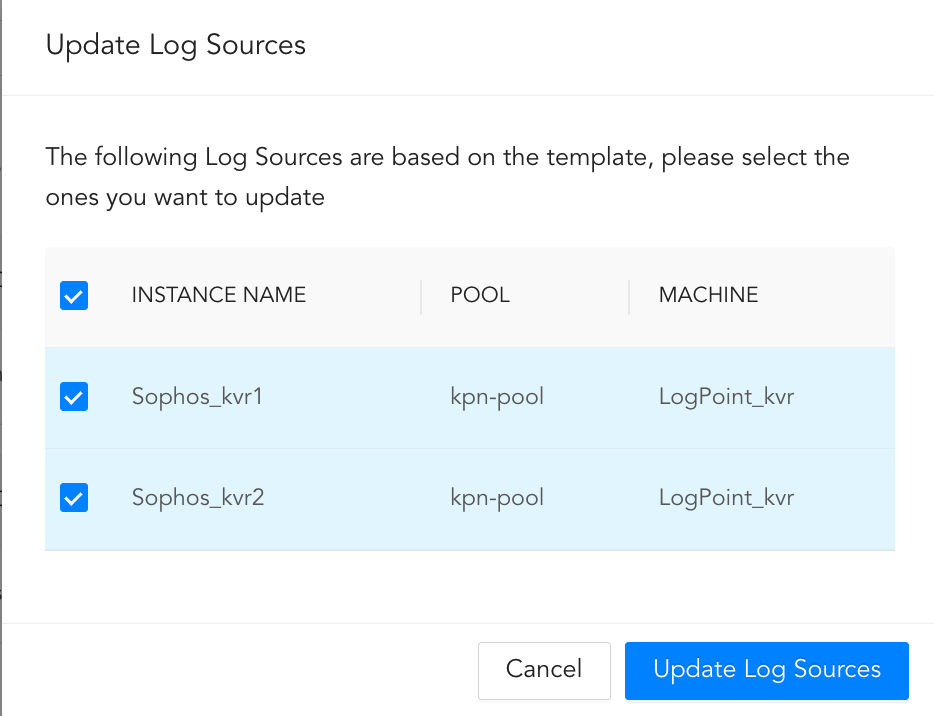
Updating Log Sources
You can also update the template later on. Templates ready for update are marked with Update available.
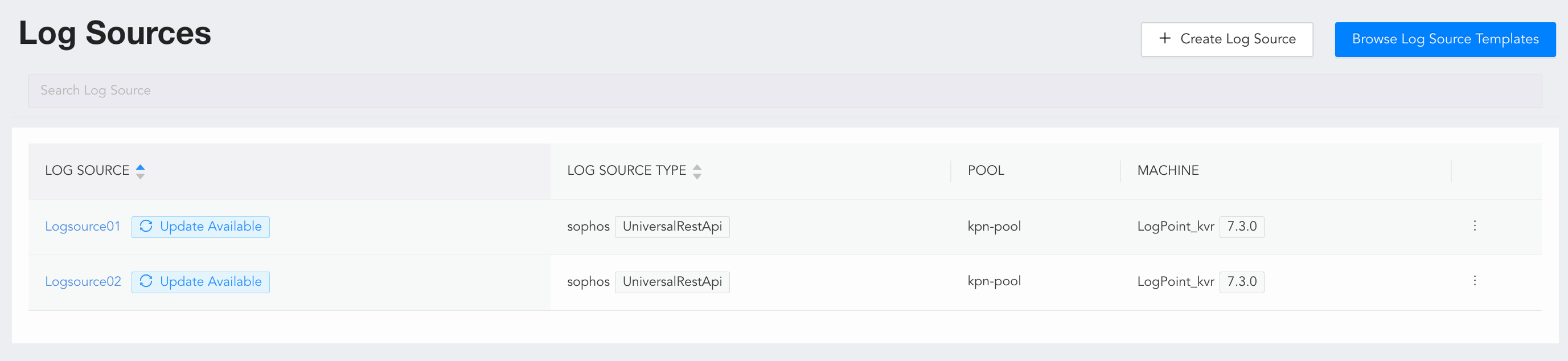
Update Available Information
Open the Log source and click on Update Available.
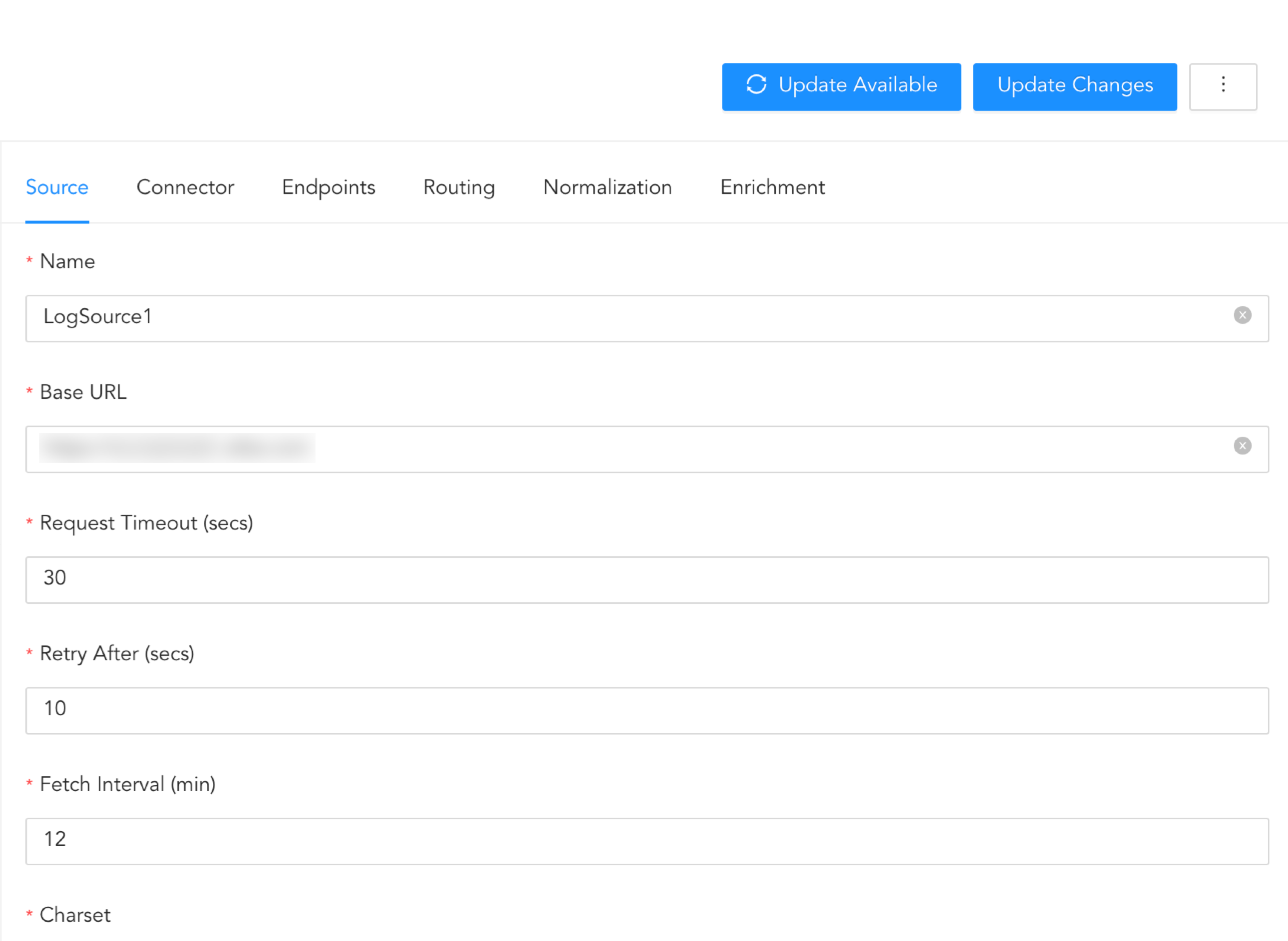
Update Available
To import a Log Source template:
Go to CONFIGURE >> LOG SOURCES from the navigation bar.
click Browse Log Source Templates.
Click Import Templates and then Browse.
Browse for the template. Select it.
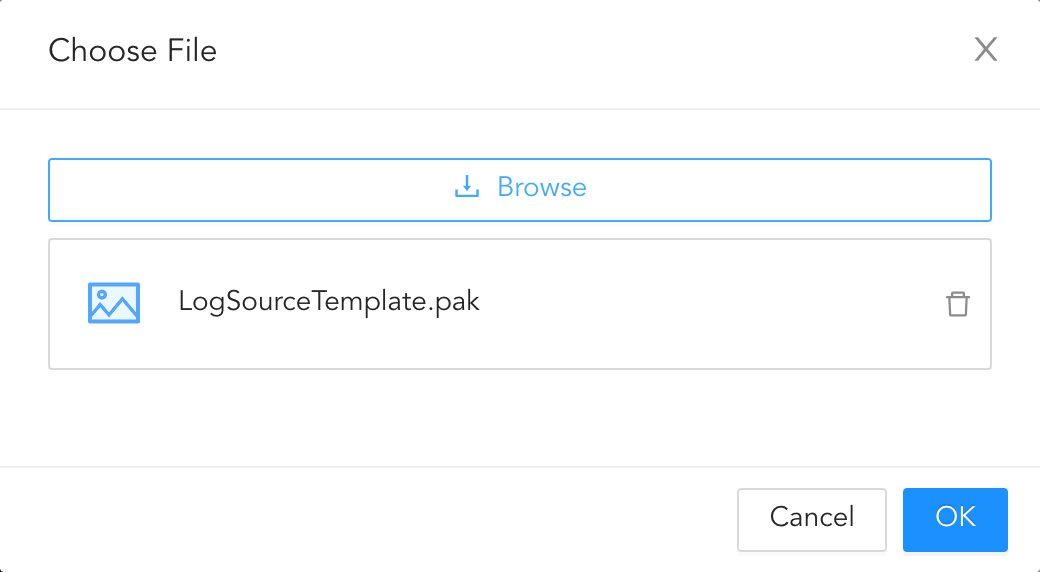
Importing a template.
Click OK.
Go to CONFIGURE >> LOG SOURCES to find the imported template. If a template with the same name as the imported template exists, you will get an error message. You must rename the .pak file and import it again.
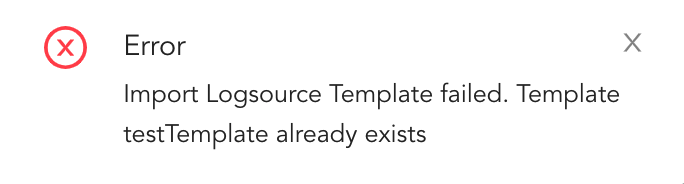
Error message for invalid import